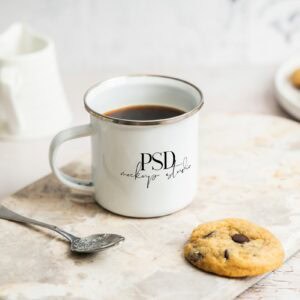
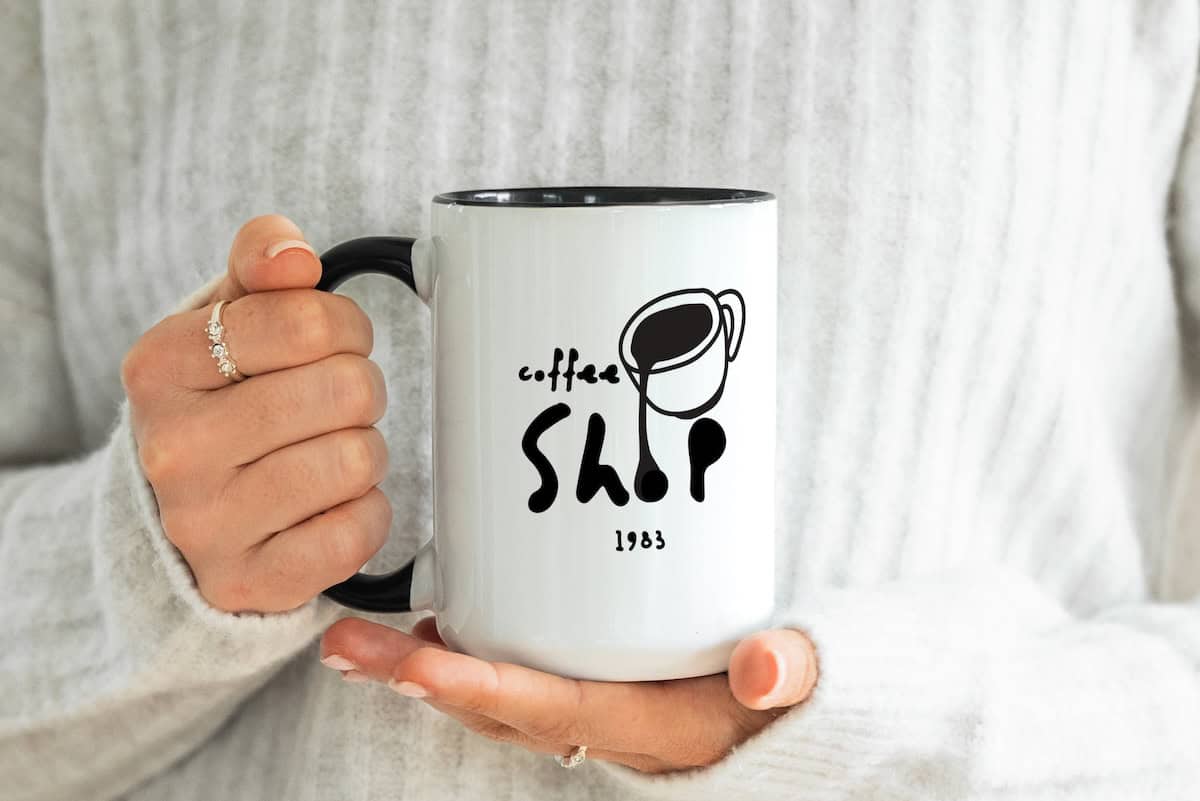
Looking for a free 15oz black accent mug mockup PSD? Here’s one. Black accent mugs (the two-tone style with a black handle and interior, white printable body) are one of the strongest sellers on Etsy and print-on-demand shops right now, mainly because the high contrast makes designs jump off the page. This mockup is a real photo of an 15 ounce accent mug, ready to drop your design into via the smart object layer.
What’s included
- One PSD file, 3600 x 2400 px at 300 DPI
- Real photo, not AI
- 15oz capacity, popular for buyers who want a larger mug for tea, hot chocolate, or oversized coffee servings
- Black handle and interior with a white printable body, ideal for bold high-contrast designs that pop against the dark accents The two-tone accent style is one of the highest-selling mug formats on Etsy right now
- Proper margins from the rim, base, and handle built in, so your design sits where it would on a real printed mug.
- Compatible with Photoshop and Photopea
- Free for personal and commercial use, including Etsy and print-on-demand listings
I’ve got a 15oz full black mug mockup freebie too!
Grab your free mug mockup!
Enter your email and I’ll send the PSD link straight to your inbox.
How to use it in Photoshop
- Open the PSD in Photoshop (File > Open)
- Find the layer labeled “Your Design Here” in the Layers panel
- Double-click the smart object thumbnail to open the design canvas in a new tab
- Drop your design in, fill the canvas, and save with Cmd/Ctrl + S
- Go back to the mockup tab and export with File > Export > Export As
If you already have a different sized file from a print-on-demand supplier, just drop it into the smart object and scale it up or down to fit the canvas.
New to smart objects or need a walkthrough with screenshots? Here’s my full guide: How to Use PSD mockups
How to use it in Photopea
Don’t have Photoshop? Photopea is a free browser-based editor that opens PSDs and supports smart objects, which means this mockup works there too.
The quick version:
- Go to photopea.com and open the PSD (File > Open)
- Double-click the “Your Design Here” smart object layer
- Drop your design into the canvas and save with Ctrl + S
- Export from the mockup tab with File > Export As > JPG or PNG
Same rule for full wrap files: drop them in and scale to fit the smart object canvas.
Want the full walkthrough with screenshots? Here’s my complete guide: How to Use Photopea for PSD mockups
How you can use this mockup
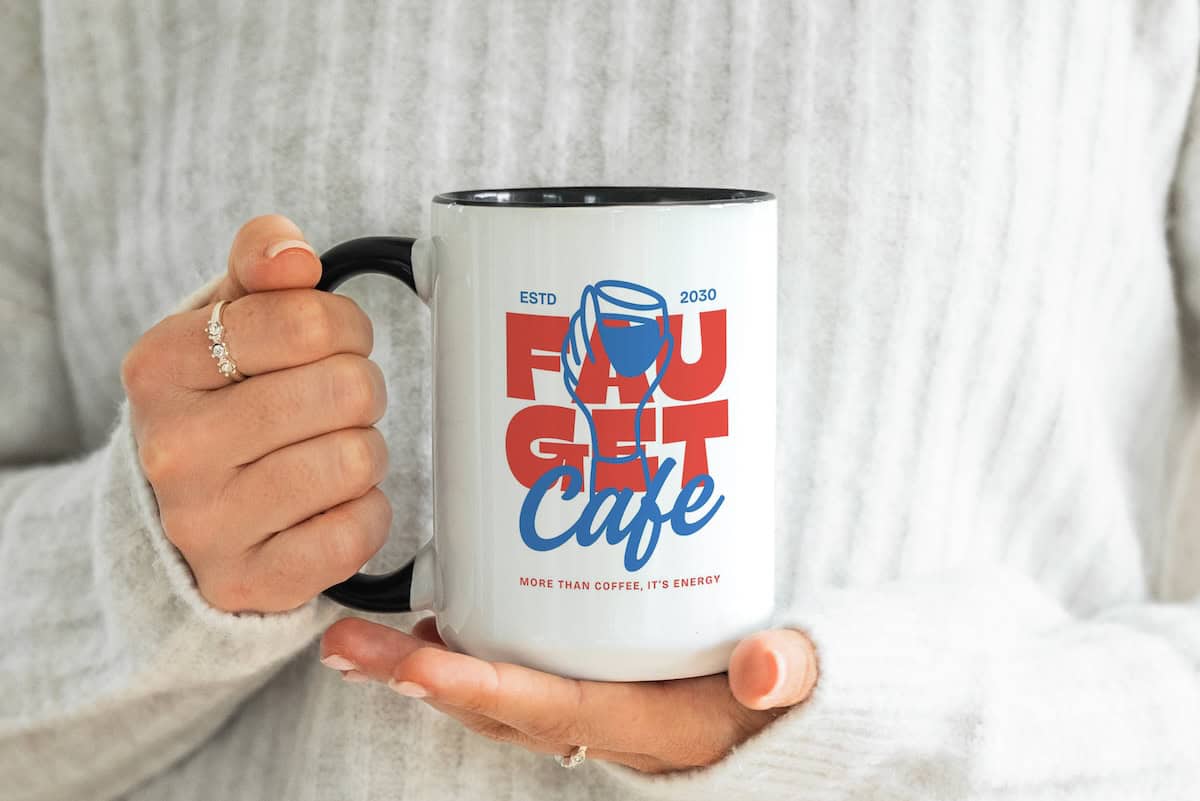
This free mug mockup is licensed for personal and commercial use. You can use it to:
- Present your own mug designs in Etsy listings, online shops, or social media
- Show design concepts to clients
- Use it in your product photography for print-on-demand shops
- Include it in your own portfolio or marketing materials
What you can’t do
Please don’t:
- Resell or redistribute the mockup PSD file, whether as-is, edited, or rebranded
- Include the mockup in a bundle, template pack, or resource that you sell or give away
- Share the download link or file directly with others (please send them here to grab their own copy instead)
- Claim the mockup as your own work or remove any credit/branding from the source files
Want more mug styles?
This is one of many mug mockups in my shop. If you’re selling mug designs on Etsy, running a print-on-demand shop, or putting together product previews for clients, you’ll probably want a few different looks on hand.
My shop has a growing range of mug mockups in different styles, colors, and settings, so you can mix and match to build a gallery that feels cohesive without looking repetitive. New mockups get added regularly, so it’s worth checking back (or better, joining the email list so I can let you know when new ones land).
FAQs
More from our Shop
See what else we’ve got!