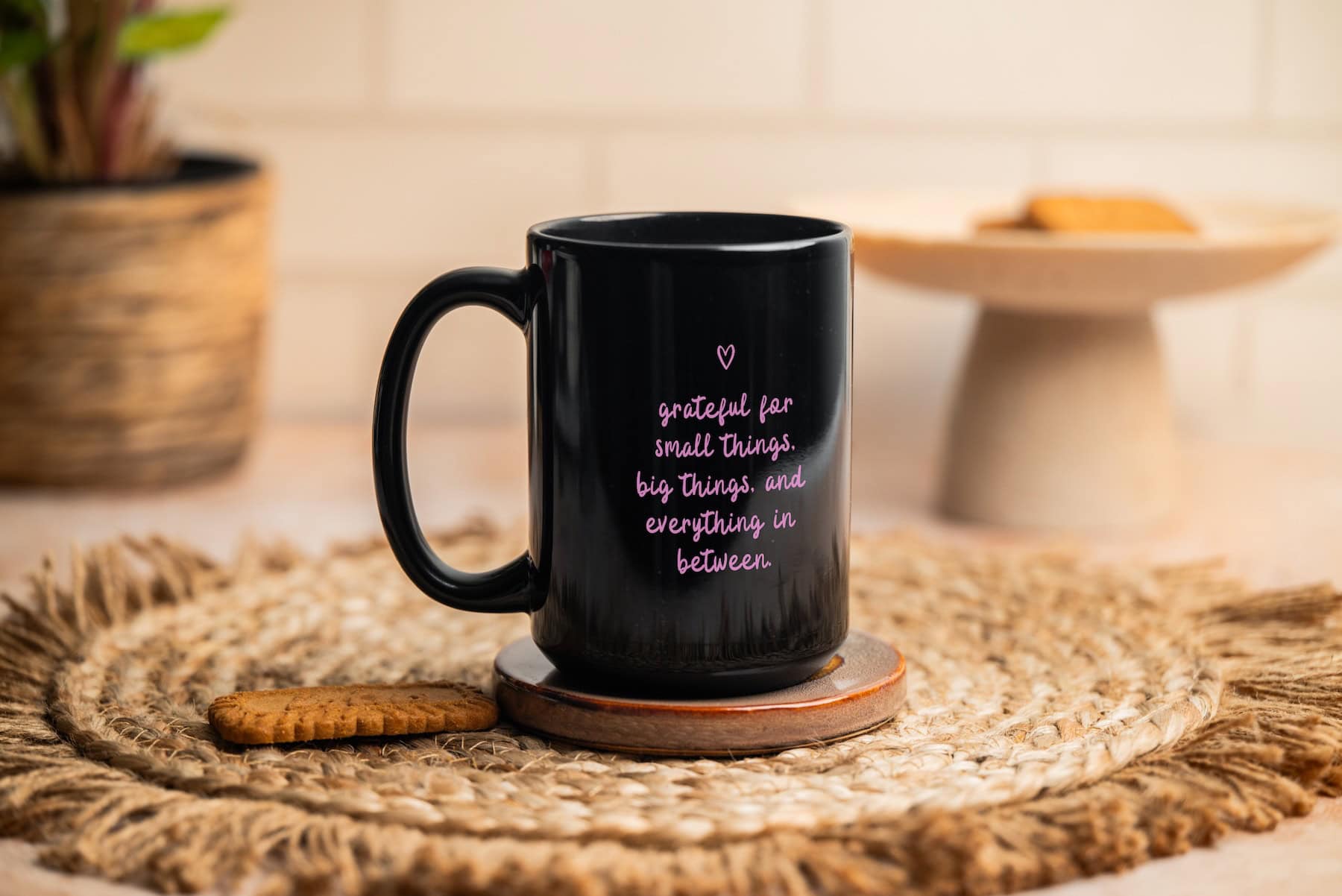
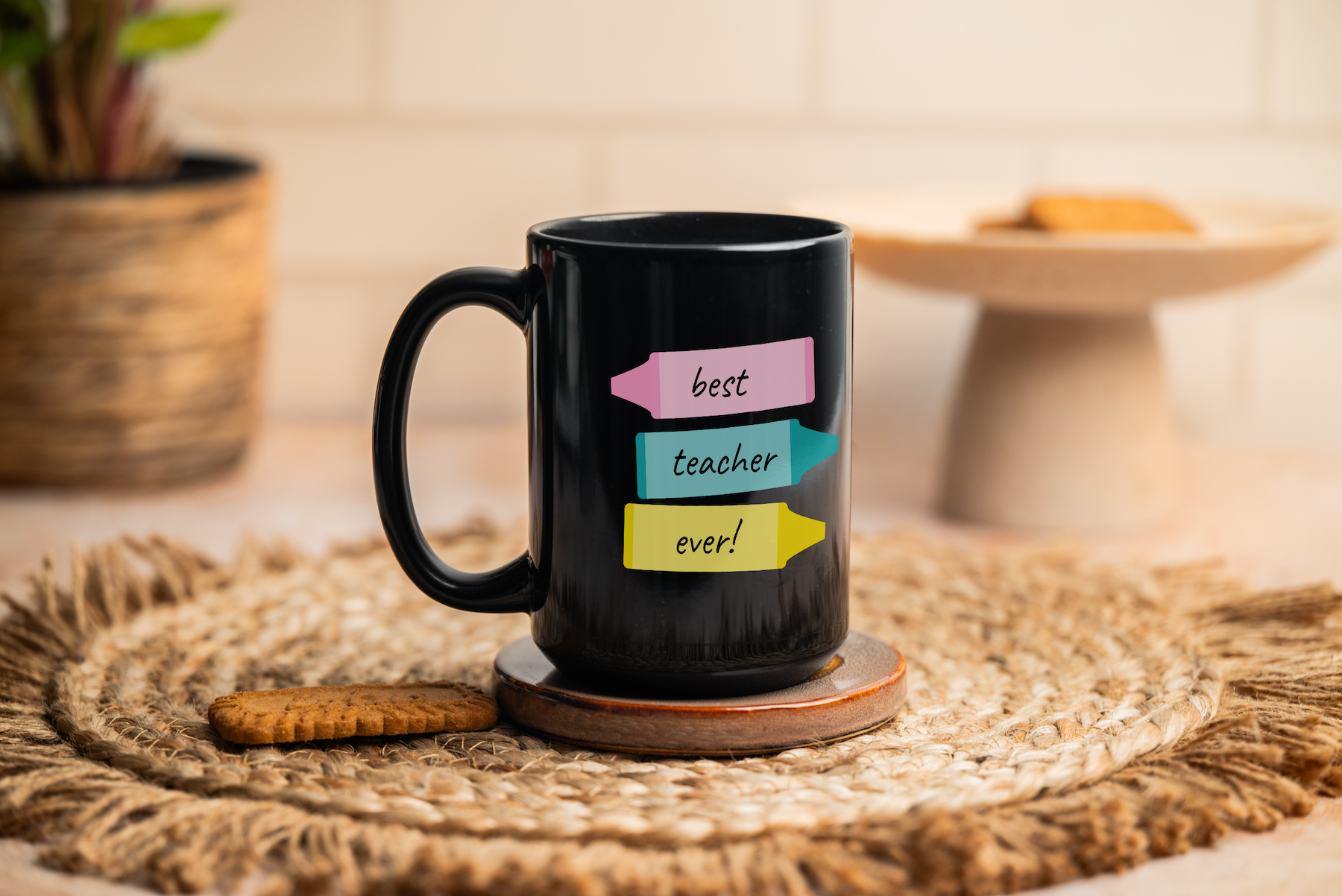
This is a free 15oz full black mug mockup PSD that’s ready to use in Photoshop or Photopea. If you sell print-on-demand mugs on Etsy, this is the perfect way to give a clean photo to show your designs without having to photograph the mug yourself.
This is a real photo of a black 15 ounce mug that I ordered from Printify and photographed in my home studio.
What’s included
- One PSD file, 2400 px by 3600px at 300 DPI
- Real photo (taken by a real person, me!)
- Smart object layer ready for your design
- Compatible with Photoshop and Photopea
- Free for personal and commercial use, including Etsy and print-on-demand shops
Grab your mug mockup!
Enter your email and I’ll send the PSD link straight to your inbox.
How to use it in Photoshop
- Open the PSD in Photoshop (File > Open)
- Find the layer labeled “Your Design Here” in the Layers panel
- Double-click the smart object thumbnail to open the design canvas in a new tab
- Drop your design in, fill the canvas, and save with Cmd/Ctrl + S
- Go back to the mockup tab and export with File > Export > Export As
If you already have a different sized file from a print-on-demand supplier, just drop it into the smart object and scale it up or down to fit the canvas.
New to smart objects or need a walkthrough with screenshots? Here’s my full guide: How to Use PSD mockups
How to use it in Photopea
Don’t have Photoshop? Photopea is a free browser-based editor that opens PSDs and supports smart objects, which means this mockup works there too.
The quick version:
- Go to photopea.com and open the PSD (File > Open)
- Double-click the “Your Design Here” smart object layer
- Drop your design into the canvas and save with Ctrl + S
- Export from the mockup tab with File > Export As > JPG or PNG
Same rule for full wrap files: drop them in and scale to fit the smart object canvas.
Want the full walkthrough with screenshots? Here’s my complete guide: How to Use Photopea for PSD mockups
Tips
Because the mug surface is entirely black, your design needs enough contrast to stand out against it. This is different from designing for a white mug, where almost anything is readable. On a black mug, the design has to work harder.
Colors that work well
White is the most reliable color to use on a black mug. It gives maximum contrast and reads clearly at any size. Bright, saturated colors like yellow, orange, coral, and hot pink also show up well. Metallic-look designs in gold or silver are popular on black mugs and tend to photograph beautifully, which helps with listing photos.
Pastel colors can work if they are light enough, but mid-tones are where things get tricky. A dusty sage green or a muted burgundy might look great on screen but disappear against a black mug surface in print. If you are designing in pastels, test the design by placing it on a black background in Canva or Photoshop before you commit.
Colors and styles to avoid
Dark designs are the obvious problem. Navy, forest green, dark purple, and charcoal all blend into the mug surface and become hard to read. The same goes for very detailed illustrations with a lot of fine lines in dark colors. Those lines disappear.
Gradients are worth approaching carefully. A gradient that goes from white to a mid-tone color will fade out before it reaches the mug surface and often looks unfinished. If you want to use a gradient, make sure the darkest point of the gradient is still noticeably lighter than the mug itself.
Keep it simple
Black mugs suit bold, graphic designs better than intricate detailed ones. A clean single-color design, a short phrase in a statement font, or a simple illustration with thick lines will always outperform something overly detailed. The mug is doing a lot of visual work already with its color, so the design does not need to be complex to look good.
FAQs
Want more mug mockups?
This is one of several mug mockups in the shop. If you sell print-on-demand mugs on Etsy, your listing photos are doing most of the selling work. A flat graphic of your design does not convert as well as a real photo showing the mug in a styled setting.
The shop has mug mockups in different sizes, colors, and scenes, all photographed in real settings with consistent styling. New mockups are added regularly. Or check out my other free mockups!
More from my shop
Check out my other listings